Introduction
Many gamers spend hundreds or even thousands of dollars on powerful gaming hardware, yet they never take the time to adjust the settings that have the biggest impact on their experience. As a result, they may deal with lower frame rates, blurry visuals, increased input lag, or unnecessary distractions during gameplay.
The truth is that the default settings in most games are designed to work on a wide range of computers. They are not personalized for your specific hardware or gaming style. Spending just a few minutes adjusting these settings can make your games look better, run smoother, and feel far more responsive.
Whether you enjoy competitive shooters, racing games, sports titles, or story-driven adventures, understanding these essential gaming settings will help you get the best possible performance from your PC.
Start with Your Display Resolution
Resolution determines how sharp and detailed a game looks.
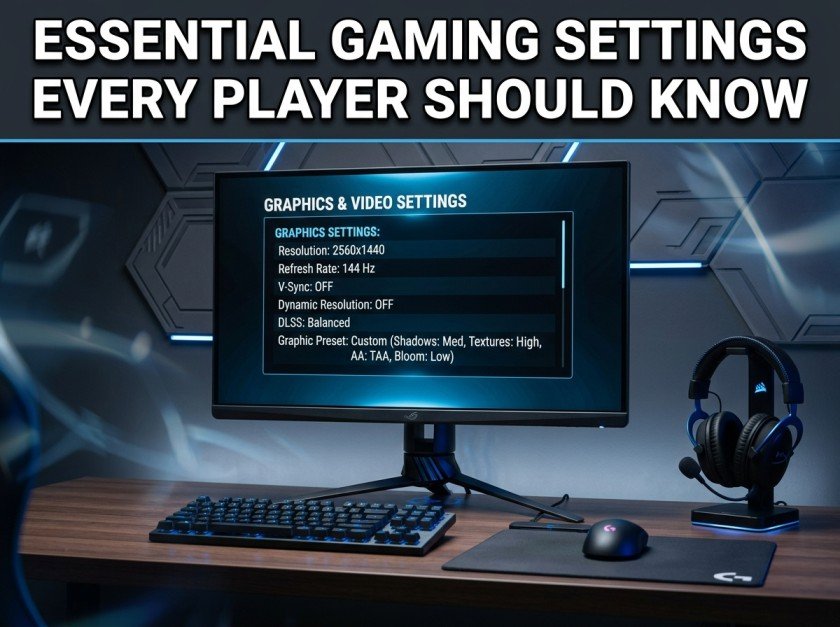
Most modern monitors use 1920×1080 (Full HD), while higher-end displays support 2560×1440 (QHD) or 3840×2160 (4K).
Higher resolutions create sharper images but also require more graphics power.
If your computer struggles to maintain smooth performance, lowering the resolution slightly can provide a noticeable FPS boost without making the game look significantly worse.
Choose the Right Refresh Rate
A monitor’s refresh rate determines how many times it updates the image every second.
Common refresh rates include:
- 60 Hz
- 75 Hz
- 120 Hz
- 144 Hz
- 165 Hz
- 240 Hz
If you own a high-refresh-rate monitor, make sure Windows and your game are both configured to use it. Many players unknowingly leave their displays running at 60 Hz, missing out on a much smoother experience.
Adjust Graphics Quality Instead of Using Presets
Many games offer Low, Medium, High, and Ultra presets. While convenient, these presets aren’t always the best choice.
Instead, customize individual settings.
Lower these options first:
- Shadows
- Volumetric Lighting
- Ambient Occlusion
- Reflections
- Motion Blur
These settings often have the greatest impact on performance while providing only small visual improvements.
Turn Off Motion Blur
Motion Blur is designed to simulate the way cameras capture movement, but many players find that it reduces image clarity.
Disabling Motion Blur can make fast-paced gameplay feel sharper and easier to follow, especially in competitive games.
Disable Film Grain and Chromatic Aberration
These effects are intended to create a cinematic appearance, but they often reduce visual clarity.
Turning them off usually results in a cleaner and more natural-looking image without affecting performance.
Find the Best Field of View (FOV)
The Field of View (FOV) controls how much of the game world you can see.
A wider FOV allows you to spot more of your surroundings, which is particularly useful in first-person games.
However, extremely high FOV settings may slightly reduce performance or create visual distortion.
Experiment until you find a comfortable balance.
Enable V-Sync Only When Necessary
V-Sync helps eliminate screen tearing by synchronizing your game’s frame rate with your monitor.
While useful in some situations, it can also introduce input lag.
If your monitor supports adaptive sync technologies, you may not need V-Sync at all.
Test both options to determine which feels better for your system.
Adjust Mouse Sensitivity
One of the most overlooked settings is mouse sensitivity.
A sensitivity that’s too high makes precise aiming difficult, while one that’s too low may require excessive hand movement.
Spend time finding a setting that feels comfortable and consistent.
Avoid changing it frequently, as consistency helps build muscle memory.
Customize Key Bindings
Every player has different preferences.
Most modern games allow you to remap controls.
Place frequently used actions on keys that are easy to reach.
Comfortable controls improve reaction times and reduce fatigue during long gaming sessions.
Configure Audio Settings
Audio is just as important as graphics.
Clear sound helps you:
- Hear footsteps
- Detect approaching vehicles
- Notice environmental cues
- Improve overall awareness
Use stereo or surround sound if supported by your headset, and adjust music, dialogue, and effects volumes according to your preferences.
Activate Game Mode in Windows
Windows Game Mode reduces unnecessary background processes while gaming.
Combined with updated graphics drivers, this can provide a smoother experience without requiring any additional software.
Keep Drivers Up to Date
Game developers regularly optimize their titles for the latest graphics drivers.
Updated drivers may provide:
- Better FPS
- Improved stability
- Bug fixes
- Enhanced compatibility
Checking for updates every few weeks is a good habit for any PC gamer.
Optimize Background Applications
Background software consumes valuable CPU, RAM, and storage resources.
Before starting a gaming session:
- Close unnecessary browser tabs.
- Pause downloads.
- Exit streaming software if not in use.
- Disable applications you don’t need.
This helps your system dedicate more resources to the game.
Save Different Profiles
Some games allow multiple graphics profiles.
Consider creating:
- A Performance Profile for competitive gaming.
- A Balanced Profile for everyday play.
- A Quality Profile for story-driven games where visuals matter more than frame rate.
Switching between profiles takes only a few seconds and gives you flexibility depending on the game.
Avoid Chasing Maximum Settings
Many players automatically select Ultra graphics because they believe it’s always the best option.
In reality, the visual difference between High and Ultra settings is often very small, while the performance difference can be significant.
Running a game smoothly at High settings is usually a better experience than struggling at Ultra.
Build Good Gaming Habits
Optimized settings are only part of the equation.
To keep your PC performing well:
- Update Windows regularly.
- Clean dust from your system.
- Monitor storage space.
- Restart your computer occasionally.
- Avoid downloading unknown optimization software.
Good maintenance keeps your system stable and ready for long gaming sessions.
Conclusion
The right settings can completely transform your gaming experience without costing a single dollar. By adjusting graphics options, configuring your display correctly, customizing controls, and keeping your system updated, you can enjoy smoother gameplay, better responsiveness, and clearer visuals.
Every computer is different, so don’t be afraid to experiment until you find the perfect balance between performance and image quality. Small adjustments made thoughtfully can have a much bigger impact than many players realize.
Whether you’re competing online or exploring a single-player adventure, taking a few minutes to optimize your settings ensures you’re getting the best experience your hardware can provide.