Introduction
Nothing is more frustrating than launching your favorite game only to experience lag, stuttering, or sudden drops in frame rate. Many gamers assume that the only solution is buying a new graphics card or upgrading their processor. While hardware upgrades certainly improve performance, they are not always necessary.
In many cases, a slow gaming experience is caused by software settings, background programs, outdated drivers, or poor system maintenance. A few simple adjustments can noticeably increase your frames per second (FPS) and make games feel smoother without spending any money.
This guide walks you through practical methods to improve gaming performance using the hardware you already own. Whether you’re playing competitive shooters, racing games, or open-world adventures, these tips can help you get the most out of your PC.
What Is FPS and Why Does It Matter?
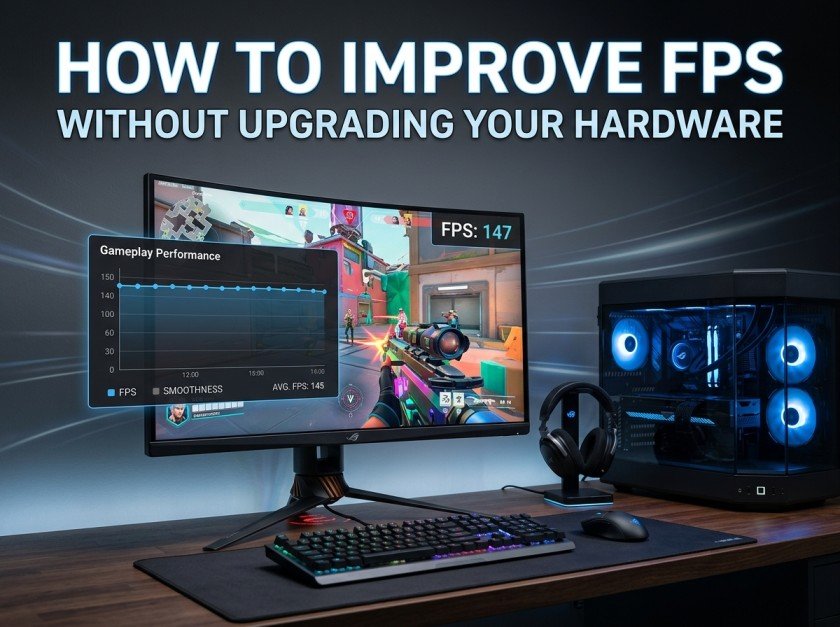
FPS, or Frames Per Second, measures how many images your computer displays every second.
A higher FPS creates smoother gameplay, making movement feel more responsive and improving the overall gaming experience.
As a general guide:
- 30 FPS – Playable but may feel less smooth.
- 60 FPS – The standard for enjoyable gaming.
- 120 FPS or higher – Ideal for competitive gaming on high-refresh-rate monitors.
While every game is different, maintaining a stable frame rate is usually more important than achieving the highest possible number.
Lower Graphics Settings Wisely
Many games automatically select graphics settings that are too demanding for your PC.
Instead of lowering everything to the minimum, focus on the settings that have the biggest impact on performance.
Try reducing:
- Shadow Quality
- Ambient Occlusion
- Reflection Quality
- Anti-Aliasing
- Volumetric Effects
- View Distance
Keep texture quality higher if your graphics card has enough video memory, as textures often have a smaller impact on FPS than lighting and shadows.
Close Background Applications
Many programs continue running even when you’re not using them.
Applications like web browsers, music software, cloud storage tools, and messaging apps consume memory and processor resources that your games could use.
Before launching a game:
- Close unnecessary applications.
- Disable heavy startup programs.
- Pause large downloads.
- Exit software you don’t need during gameplay.
Freeing system resources can improve performance, especially on older computers.
Keep Graphics Drivers Updated
Graphics card manufacturers regularly release driver updates that improve compatibility and optimize performance for newly released games.
Installing the latest drivers can:
- Increase FPS
- Fix visual bugs
- Improve system stability
- Reduce crashes
Checking for updates every few weeks is a simple habit that can make a noticeable difference.
Enable Game Mode in Windows
Windows includes a built-in Game Mode designed to prioritize gaming performance.
When enabled, Windows reduces unnecessary background activity and allocates more resources to your game.
This feature is easy to activate and can provide smoother gameplay without changing any hardware.
Optimize In-Game Resolution
Running games at a higher resolution requires more processing power.
If your game struggles at full resolution, lowering it slightly can significantly increase FPS.
For example:
- 1080p to 900p
- 1440p to 1080p
The image may look slightly less sharp, but smoother gameplay is often worth the trade-off.
Free Up Storage Space
A nearly full storage drive can slow down your computer.
Delete files you no longer need, uninstall unused applications, and move large media files to external storage if possible.
If your games are installed on an SSD, you’ll also benefit from faster loading times and a more responsive system.
Manage Startup Programs
Many applications launch automatically every time Windows starts.
Over time, this increases boot times and consumes valuable system resources.
Review your startup applications and disable any that aren’t essential.
A cleaner startup helps your PC dedicate more resources to gaming.
Monitor Your System Temperature
High temperatures can cause your CPU or GPU to reduce performance automatically to prevent overheating. This process is called thermal throttling.
To keep temperatures under control:
- Clean dust from fans and vents.
- Ensure proper airflow around your PC.
- Avoid blocking air intakes.
- Check that cooling fans are working correctly.
Even basic cleaning can improve cooling and restore lost performance.
Adjust Power Settings
Windows power plans affect how your computer uses its hardware.
For gaming, selecting a high-performance power plan allows the processor and graphics hardware to operate more consistently under load.
This simple adjustment can help eliminate unnecessary performance limitations.
Disable Unnecessary Visual Effects
Windows includes animations and transparency effects that use system resources.
Reducing these visual effects won’t transform your gaming experience, but every small optimization contributes to smoother overall performance, especially on older systems.
Keep Your System Free from Malware
Malware can silently consume processing power and memory.
Regularly scanning your computer with trusted security software helps ensure your hardware is working for you instead of unwanted background processes.
A healthy system is often a faster system.
Restart Your Computer Regularly
Many gamers leave their computers running for days or even weeks.
Restarting clears temporary files, refreshes system memory, and closes hidden processes that may affect performance.
If you notice your games becoming slower over time, a simple restart is often the quickest solution.
Balance Performance and Visual Quality
Every gamer has different priorities.
Some players prefer stunning graphics, while others value smooth performance for competitive play.
Experiment with settings until you find a balance that matches your hardware and personal preferences. There’s no single “perfect” configuration for every PC.
Common Mistakes to Avoid
When trying to improve FPS, avoid these common errors:
- Downloading “FPS booster” software from unknown websites.
- Installing multiple optimization tools at once.
- Disabling important Windows services.
- Ignoring graphics driver updates.
- Filling your storage drive to its maximum capacity.
- Overclocking hardware without proper knowledge.
Safe, gradual optimizations are far more effective than risky shortcuts.
Conclusion
Improving FPS doesn’t always require buying expensive new hardware. By optimizing your game settings, keeping your system clean, updating drivers, and reducing unnecessary background activity, you can often achieve smoother gameplay with the computer you already own.
Good performance is the result of many small improvements working together. Regular maintenance, smart graphics settings, and healthy computing habits will help your games run more smoothly and extend the life of your PC.
Before spending money on upgrades, take the time to apply these techniques. You may be surprised by how much extra performance your current system still has to offer.